
1. Introduction
1.1 About This Guide
This guide explains how to connect your CRM and calling platforms to Call Anchor, so calls, recordings, notes, and dispositions sync automatically — without manual data entry. It is written for account administrators and IT teams who are responsible for setting up integrations on the Call Anchor web portal.
If you're new to Call Anchor, we recommend starting with the Call Anchor Feature & User Guide to get familiar with the web portal and mobile app before connecting your CRM.
1.2 What Is CRM & Platform Integration?
Call Anchor captures calls made from the mobile app or from a connected calling platform (such as a VoIP system or dialer), and can automatically push that call activity into your CRM or any custom endpoint that accepts webhooks. Once connected, Call Anchor keeps two things in sync on your behalf:
- Call metadata — contact, duration, timestamp, direction, and disposition/outcome
- Call recordings — where recording is enabled, a secure link to the audio file
Integration setup has two parts that work together: connecting a CRM (or webhook) under CRM Set-up, and connecting the calling platform(s) you use under Platform Setup. Both are configured from Settings in the Call Anchor web portal.
2. Before You Begin
Make sure you have the following ready before starting the integration setup:
- Admin access to your Call Anchor account (Settings → CRM Set-up and Platform Setup)
- Login credentials or an API/webhook endpoint for the CRM or system you want to connect
- Knowledge of which calling platform(s) your team uses (mobile carrier line, VoIP system, or connected dialer)
- A decision on sync frequency — real-time or a scheduled interval
Note: Only account administrators can connect, edit, or remove CRM and platform integrations. If you don't see Settings → CRM Set-up in your portal, contact your Call Anchor administrator.
3. Connecting Your CRM
3.1 Supported CRM & Webhook Options
Call Anchor supports direct integration with Salesforce, plus a Custom Webhook option that lets you send call data to any endpoint your team manages (an internal system, middleware, or another CRM that accepts inbound webhooks).
| Integration | Type | Notes |
|---|---|---|
| Salesforce | Native (OAuth) | Connect and authorize directly from the portal; call data and recording links sync to mapped Salesforce records. |
| Custom Webhook | Webhook endpoint | Point Call Anchor at any HTTPS endpoint your team controls; useful for connecting systems without a native integration. |
| Other CRMs (e.g. Zoho, HubSpot) | Listed for reference | Shown in the integration catalog; confirm current availability with your Call Anchor account manager before planning a rollout. |
3.2 Step-by-Step: Connect a CRM or Webhook
- Go to Settings → CRM Set-up in the Call Anchor web portal. Select your CRM provider from the list of supported platforms, or choose Custom Webhook to
- connect any other system.
- Enter a Platform Name to identify this connection (e.g. “Acme CRM” or “Internal Webhook”).
- Choose a Scheduler frequency for how often Call Anchor should sync data (see Section 6).
- Select an Authentication Type and provide the required credentials (see Section 3.3). Enter the Webhook URL (or complete the CRM login/authorization prompt for native
- integrations like Salesforce). Optional: click Send Test Event to confirm your endpoint receives data correctly before going
- live. Click Connect Webhook (or Connect) to finish. The CRM Set-up page will show a “Connected”
- status once setup succeeds.
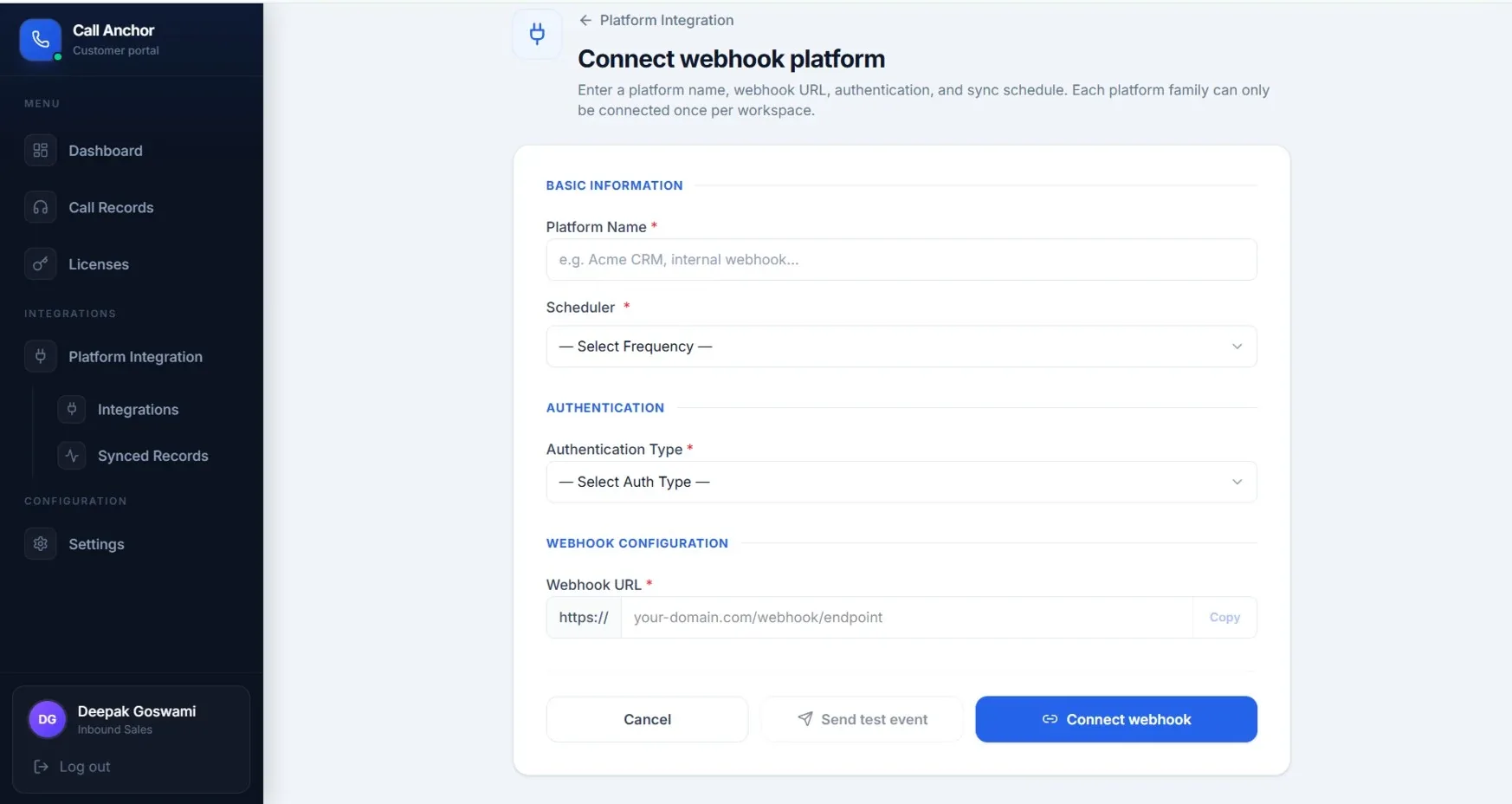
3.3 Authentication Types
The Authentication Type you choose depends on how the receiving system verifies incoming requests. Common options include API key/token-based authentication and OAuth-based sign-in (used for native integrations such as Salesforce). If you're unsure which to choose for a custom endpoint, check with the team that manages that system.
4. Platform Setup (Calling Platforms)
4.1 What Platform Setup Does
Platform Setup tells Call Anchor which calling platform(s) to capture calls from — for example, your mobile carrier line (via the Call Anchor mobile app), a VoIP system, or another connected dialer. This is separate from CRM Set-up: Platform Setup controls where call data comes from, while CRM Set-up controls where it goes.
4.2 Step-by-Step: Add a Calling Platform
- Navigate to Settings → Platform Setup.
- Enter a Platform Name for the calling system you want to connect.
- Choose a Scheduler frequency for how call data from this platform is processed.
- Select an Authentication Type and complete the required fields.
- Enter the Webhook URL for the platform, if applicable. Click Connect Platform to finish. Confirm the platform appears with an “Active” status once
- setup is complete.
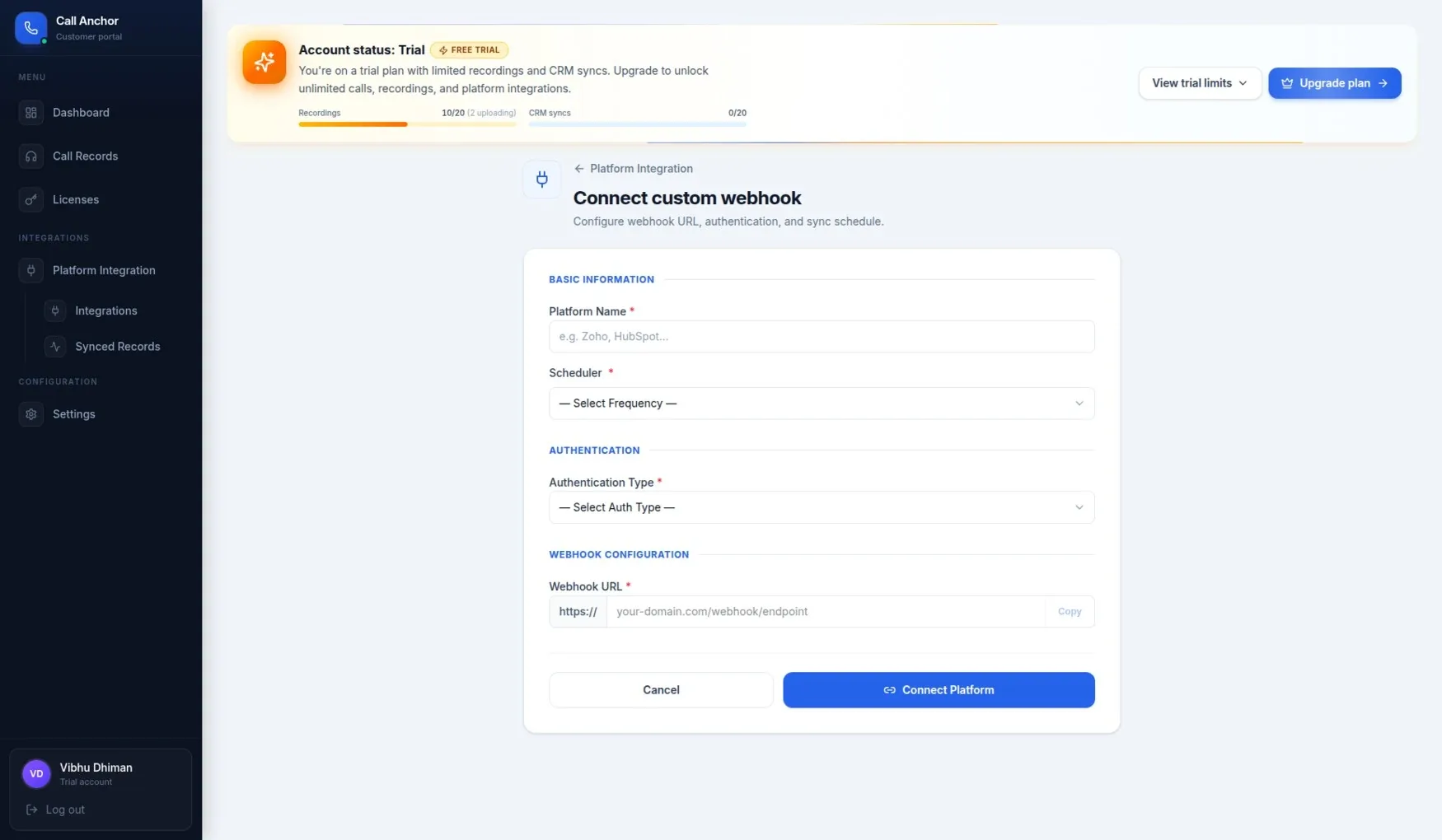
5. Managing Platform Integrations
The Platform Integration page lists every available and connected integration — both CRM connections and calling platforms — in one place. Use it to review what's connected, add a new integration, or check on integrations that are set up but not yet active.
- View total, active, and inactive integrations at a glance
- Search integrations by platform name or webhook URL
- Open Manage on any connected integration to review or update its configuration
- Click Set up on an available integration to start a new connection
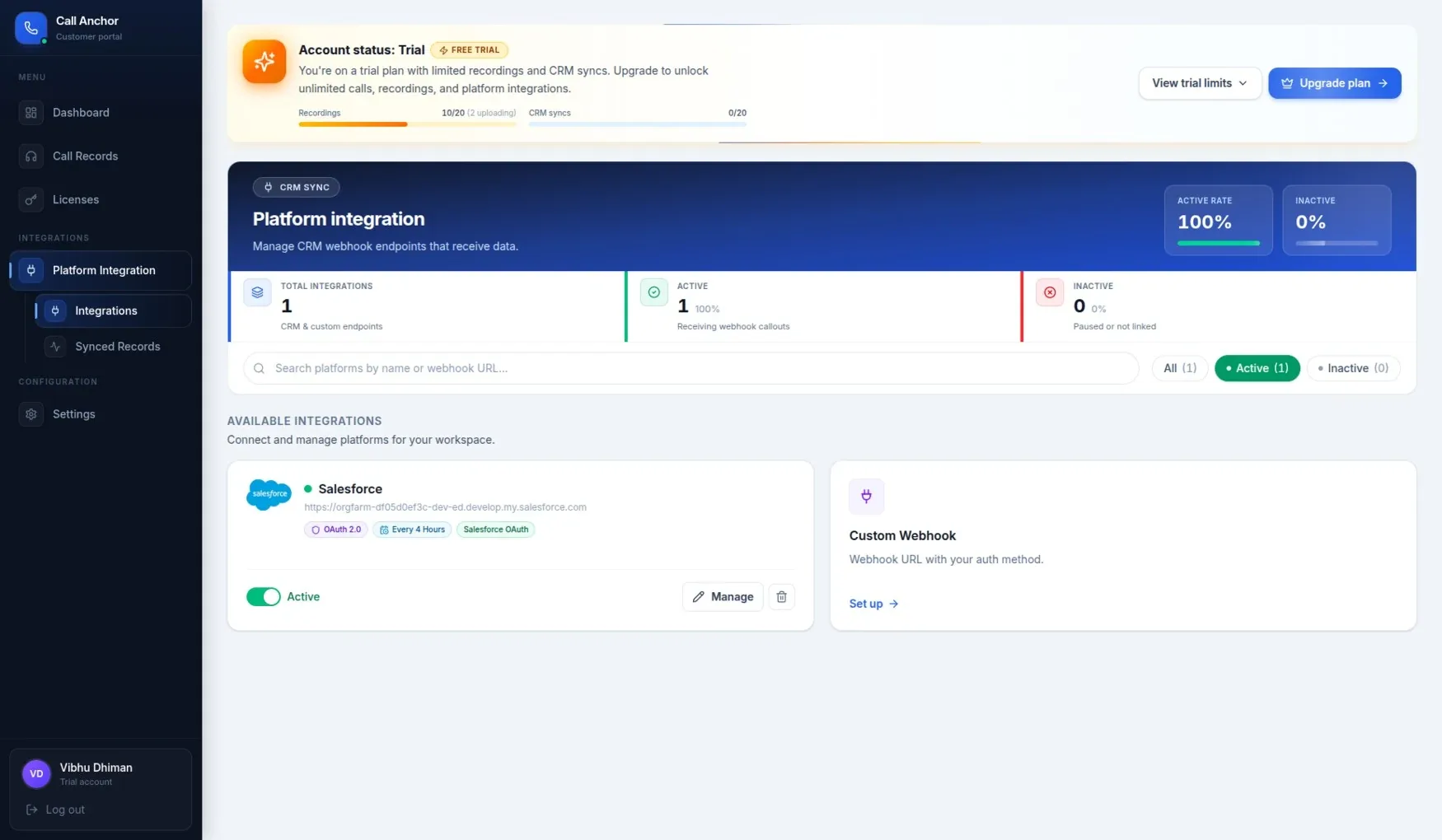
Note: Each platform family can only be connected once per workspace. To change providers, disconnect the existing integration before connecting a new one of the same type.
6. Sync Scheduling & Sync Events
6.1 Sync Frequency Options
When connecting a CRM or platform, the Scheduler setting controls how often Call Anchor pushes new data to that endpoint. Available options range from Realtime — sending data as soon as it's ready — to fixed intervals such as every 30 minutes, hourly, every 4 hours, or a daily/weekly schedule. Choose Realtime for CRMs your sales team checks continuously, or a longer interval to batch updates for lower-priority systems.
6.2 What Triggers a Sync
Call Anchor sends two kinds of events to an active integration, depending on how the call was handled:
Event When It's Sent call.completed Sent for calls that are metadata-only — no audio recording, or recording not applicable (e.g. missed calls, or recording disabled). recording.ready Sent once a call's recording finishes uploading and is available to play; the payload can include a secure, signed link to the recording.
Only active integrations receive sync events. If your disposition settings require an outcome to be submitted before a call is considered complete, Call Anchor waits for that disposition before syncing metadata-only calls — this keeps CRM records complete rather than sending partial data.
7. Confirming Sync Status
Once your CRM and platform are connected, use the Synced Records page to confirm that call data is actually reaching your CRM. Every recording and metadata sync attempt is tracked here as a synced record, along with a delivery status.
- Synced — the record was delivered successfully
- Pending — the record is queued and hasn't been delivered yet
- Failed — delivery did not succeed and needs attention
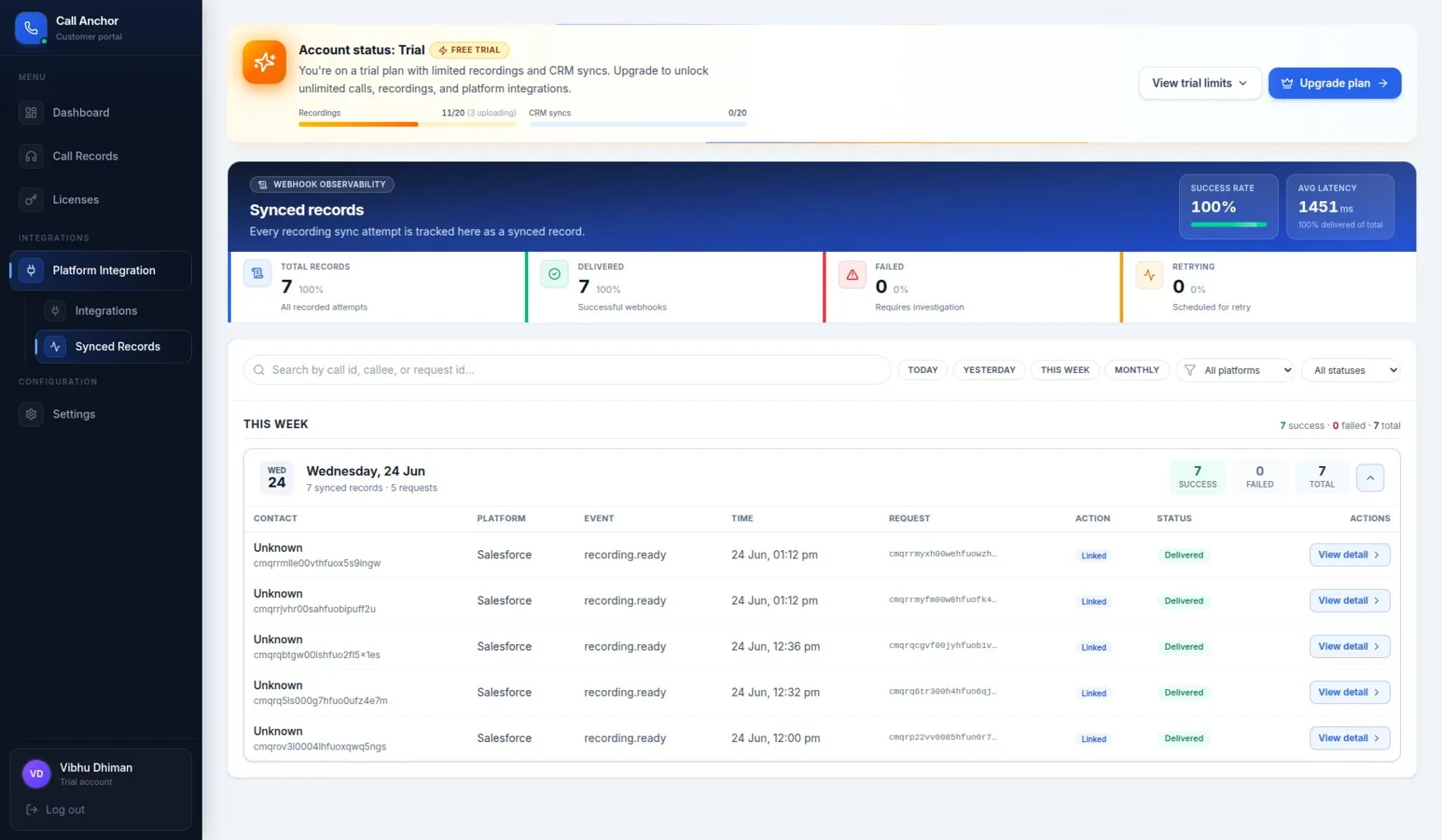
Note: If a record shows a “Failed” sync status, check your CRM connection under Settings → CRM Set-up, then retry the sync.
8. Disconnecting or Updating an Integration
To change credentials, update the sync schedule, or remove an integration, go to Settings → CRM Set-up or Platform Setup, open the relevant integration, and select Manage. From there you can update the configuration or disconnect the integration entirely. Disconnecting stops future syncs but does not remove call records already delivered to your CRM.
9. Troubleshooting & FAQs
| Issue | Likely Cause | Resolution |
|---|---|---|
| Calls not syncing to CRM | CRM connection expired or disconnected | Go to Settings → CRM Set-up and reconnect your CRM account. |
| Platform shows “Inactive” status | Authorization was not completed or has expired | Revisit Settings → Platform Setup and re-authorize the platform. |
| Sync shows “Failed” on Synced Records | Endpoint unreachable, invalid credentials, or webhook URL changed | Confirm the webhook URL and credentials, use Send Test Event to verify, then retry the sync. |
| No CRM update after a call ends | Disposition still required but not submitted, or recording not yet available | Confirm disposition was submitted; check the call's recording status before expecting a sync. |
| Can't connect a second CRM of the same type | Each platform family can only be connected once per workspace | Disconnect the existing integration first, then connect the new one. |
| Trial account: syncs stop working | Trial plan sync cap reached | Go to Settings → Licenses to review trial limits or upgrade to a paid plan. |
10. Getting Further Help
If an integration issue isn't covered above, open the in-app Tutorial for guided walkthroughs, or contact your Call Anchor administrator or support team for further assistance.