
CRM Call Sync Software for Sales Conversations
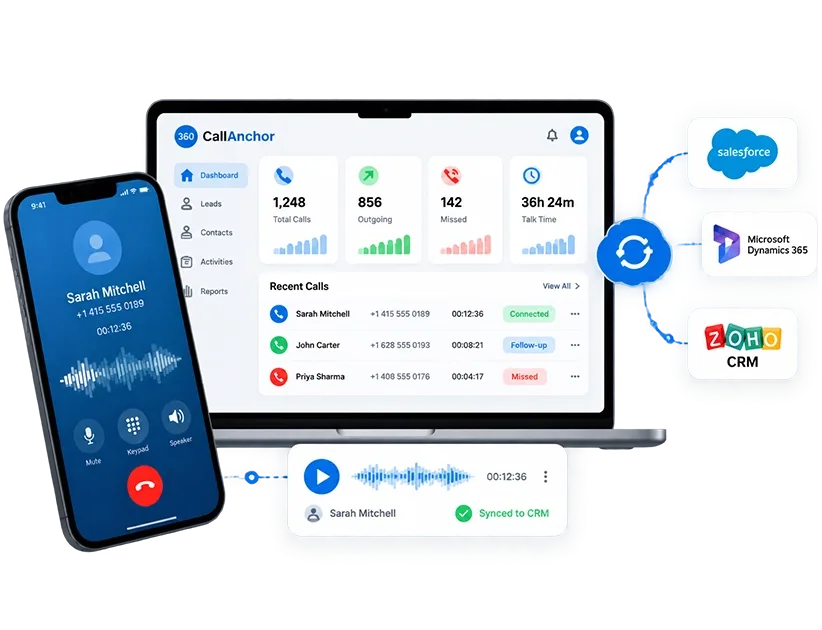
Stop losing call activity between the conversation and the record. Our call logging CRM integration software captures every business call and pushes it into the right CRM record.
How Our Call Activity Sync Software Works
Once the CRM connection is set up, 360 CallAnchor syncs calls automatically without rep involvement.
Track Every Sync Instead of Assuming It Worked
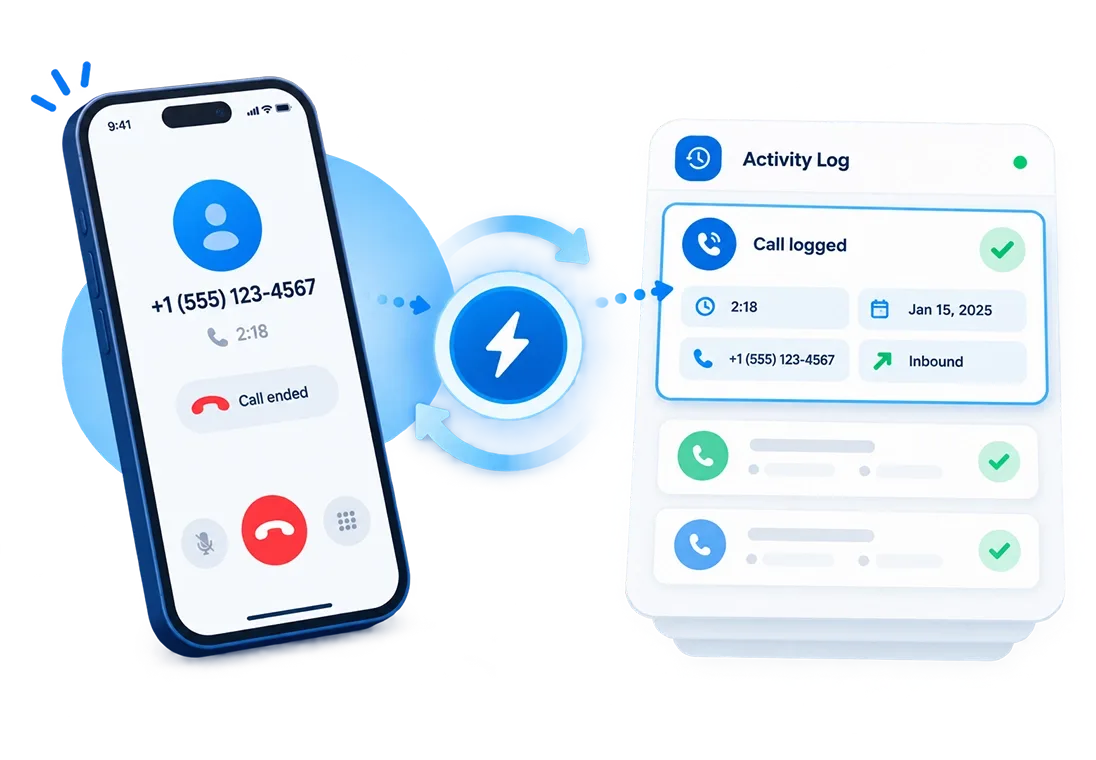
Every sync attempt carries a clear status, so admins can confirm what reached the CRM and quickly act on anything that did not with our mobile call sync app for CRM.

Per-Call Sync Status
Every call shows as Synced, Pending, or Failed, so nothing silently disappears.

Full Sync Details
View the contact, CRM platform, event, timestamp, and status for every attempt.

Search by Record
Find any sync attempt by call ID, callee, or request ID.

Push Call Data Automatically
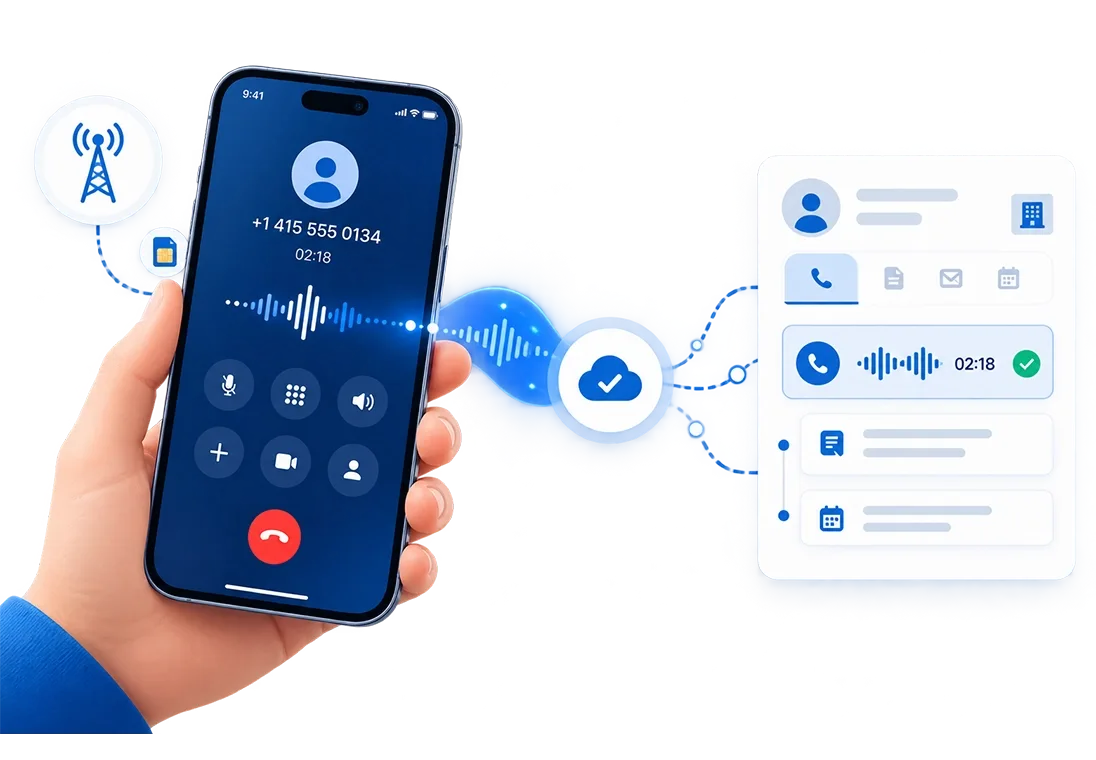
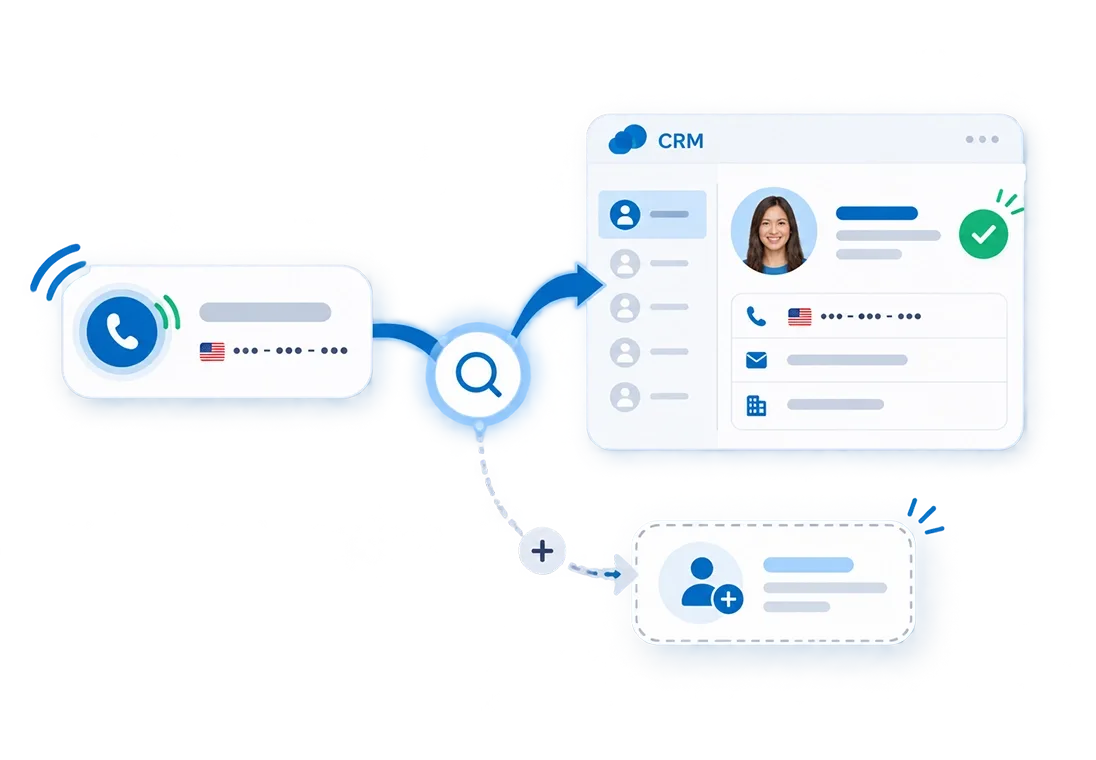
The moment a rep closes out a call, its recording, disposition, and notes push to the CRM automatically. No separate step, no manual upload, nothing left behind.

Follow-Up Sync
A scheduled follow-up syncs the moment the call is closed out, not left to memory.

Matched to the Right Record
Every call lands on the matching lead, contact, or deal automatically.
Connect your CRM instance and see a real call land on a record in real time.
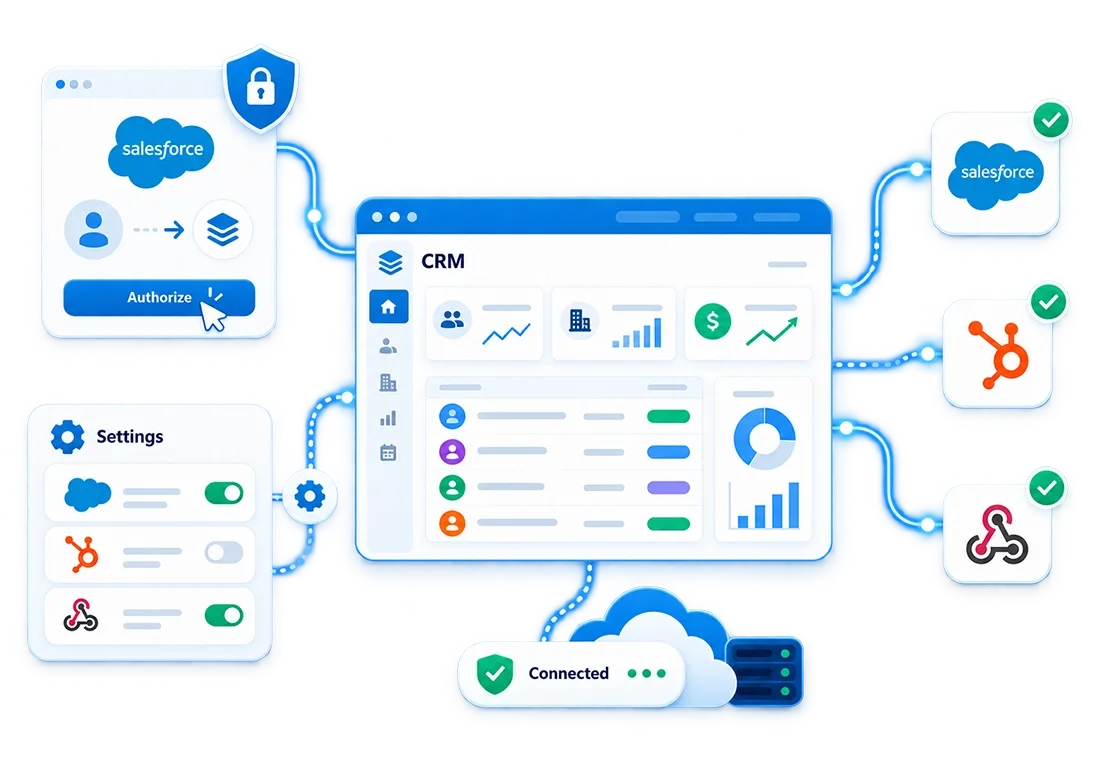
Works With Any CRM. No Migration Required.




Running a CRM That is Not in the Standard List?
360 CallAnchor works with custom CRMs, industry platforms, and internal systems through API or webhook connections.
-
Add Your Endpoint
Enter your platform URL and authentication details in Settings.
-
Choose Sync Frequency
Set how often call data syncs for each platform.
-
Sync All Call Data
Push call logs, recordings, notes, dispositions, and follow-ups to your platform.
- Call log & direction
- Talk time
- Disposition outcome
- Recording reference
- Scheduled follow-up
The Right Data Reaches Your CRM. Nothing More. Nothing Less.
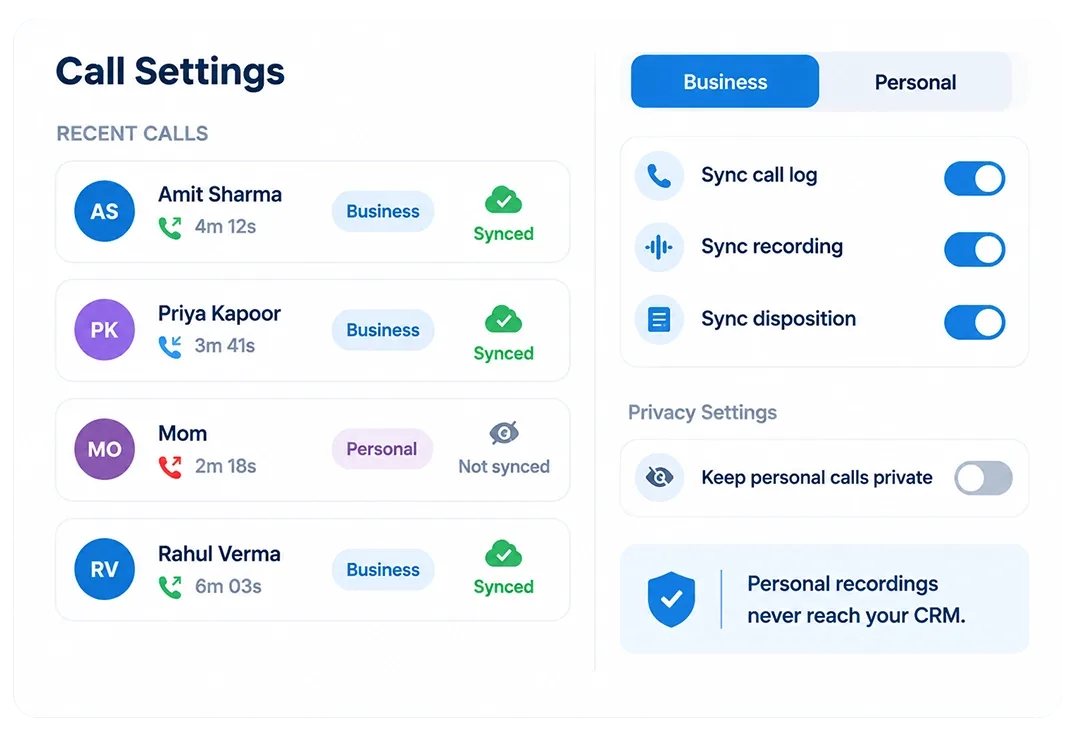
Business Calls Sync. Personal Calls Stay Private.
- Call Type Control: Mark calls as Business or Personal. Business calls sync, personal calls stay private.
- Admin Managed Settings: Control call, recording, and sync preferences at workspace level.
- Privacy Protected:Personal recordings never reach CRM.
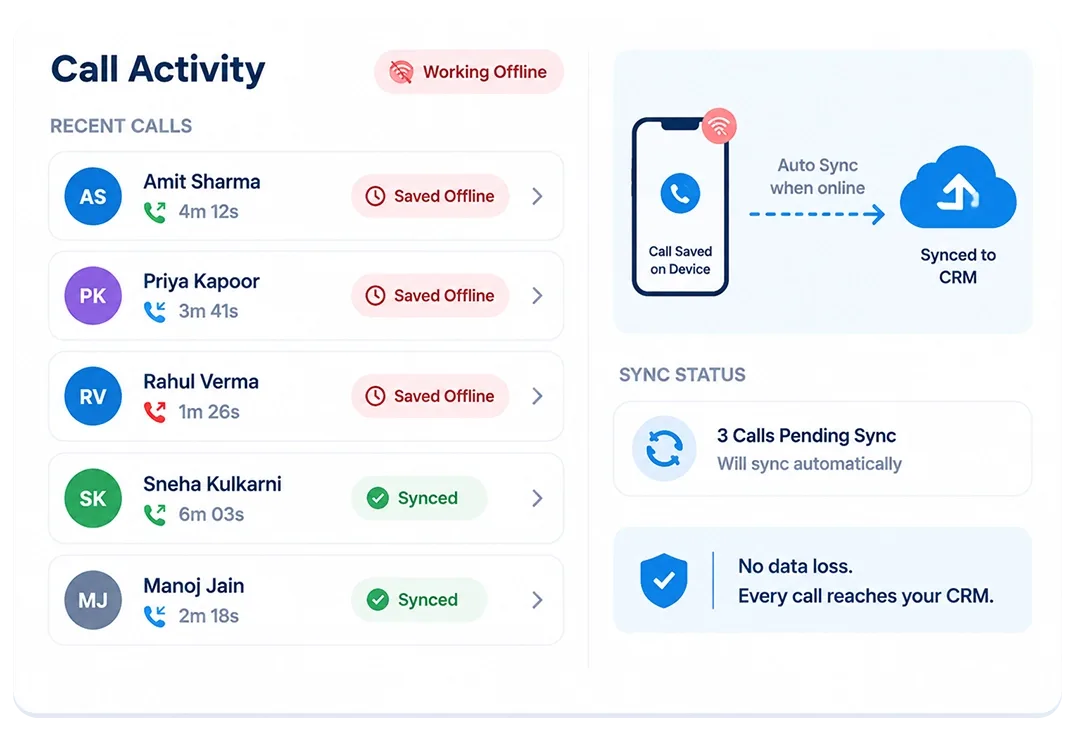
No Internet During a Call? The Record Still Gets There.
- Saved Offline: Call data is stored securely on the device when connectivity is unavailable.
- Auto Sync Later: Once the internet is restored, data automatically syncs to CRM. No manual retries.
- No Data Loss: Every call reaches the CRM, even with temporary connectivity issues.
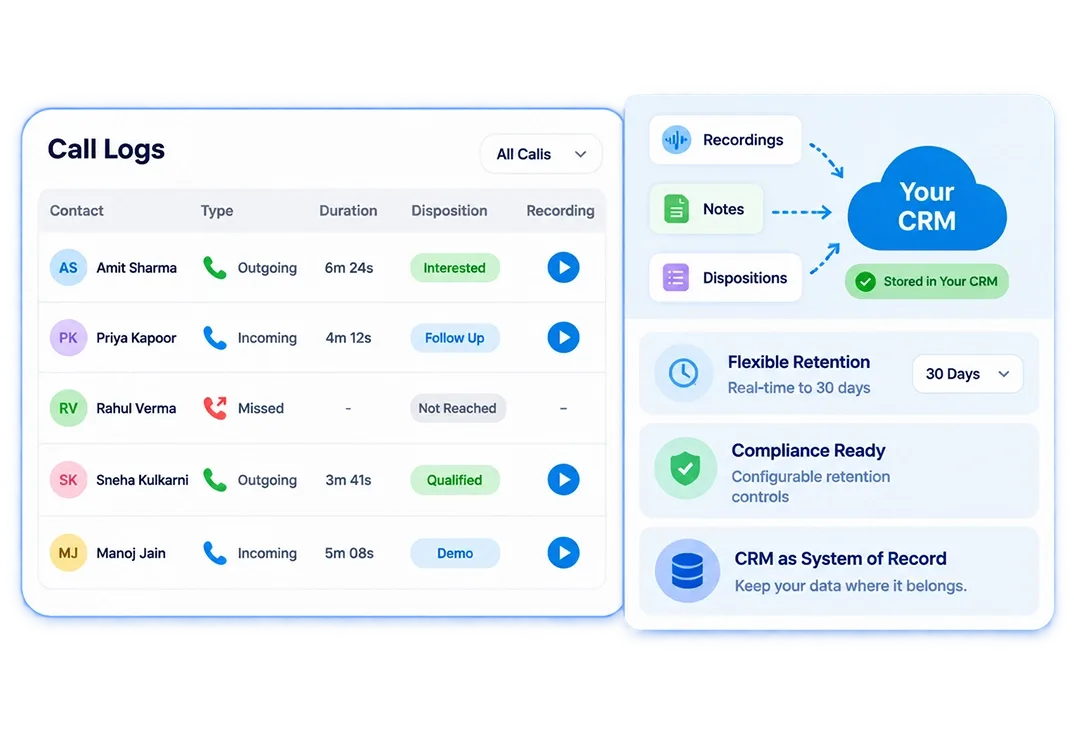
Your Data Lives in Your CRM. Not Ours.
- CRM as System of Record: Call recordings, notes, and dispositions stay in your CRM.
- Flexible Retention: Choose deletion windows from real-time to 30 days.
- Compliance Ready: Minimize data exposure with configurable retention controls.
Every Customer Conversation Belongs in Your CRM. Make Sure It Gets There.
Stop losing valuable customer conversations. Track, sync, and manage every sales call with 360 CallAnchor.